For directors
Running a meet on MeetOS, step by step.
MeetOS is the part of Attempt that runs a powerlifting meet: registration, weigh-in, flights, the platform, the referee cards, the score table and the results, in one place. When results are finalized they land on every lifter’s profile without anyone typing them again. MeetOS is in development and runs meets by invitation for now; to run one, write to meets@attemptpl.com with the meet, the date and the federation.
1. Create the meet
Open MeetOS and press Create a meet. The form asks only for what puts a meet on the calendar: a name, the federation (leave it blank for an unsanctioned meet), the start date and an end date if the meet runs two days, the time zone that registration will open and close in, and the venue with its city, region and country.
Press Create meet. The meet is saved as a draft, you become its director, and nothing is public yet. Everything else about the meet is set on the settings tabs that follow.
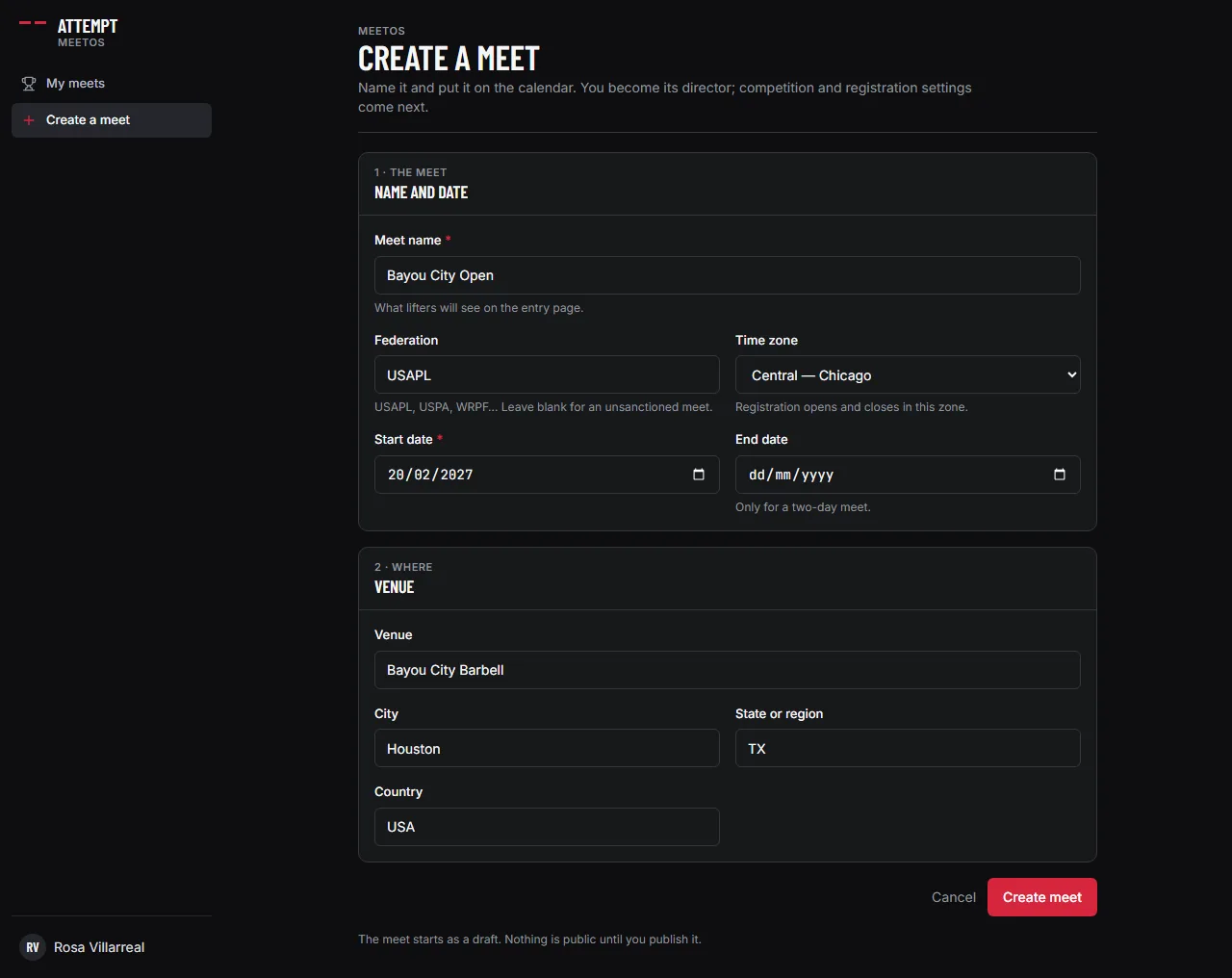
Before you move on: the meet appears under Draft on My meets.
2. Settings — General
Settings has five tabs: General, Competition, Bar and plates, Rules and Registration. General holds what identifies the meet: its name, federation, sanction number, dates, time zone and the venue with its street address.
Below that is what lifters read on the public meet page: a description, a schedule written one line per row (check-ins, weigh-ins, when lifting begins), and spectator information such as doors, tickets and parking. The schedule is shown on the public page exactly as you type it. Sponsors used to sit on this tab and now have their own screen (section 7).
Press Save settings at the bottom of each tab. Anyone whose role at the meet cannot change settings sees the same tab read-only.
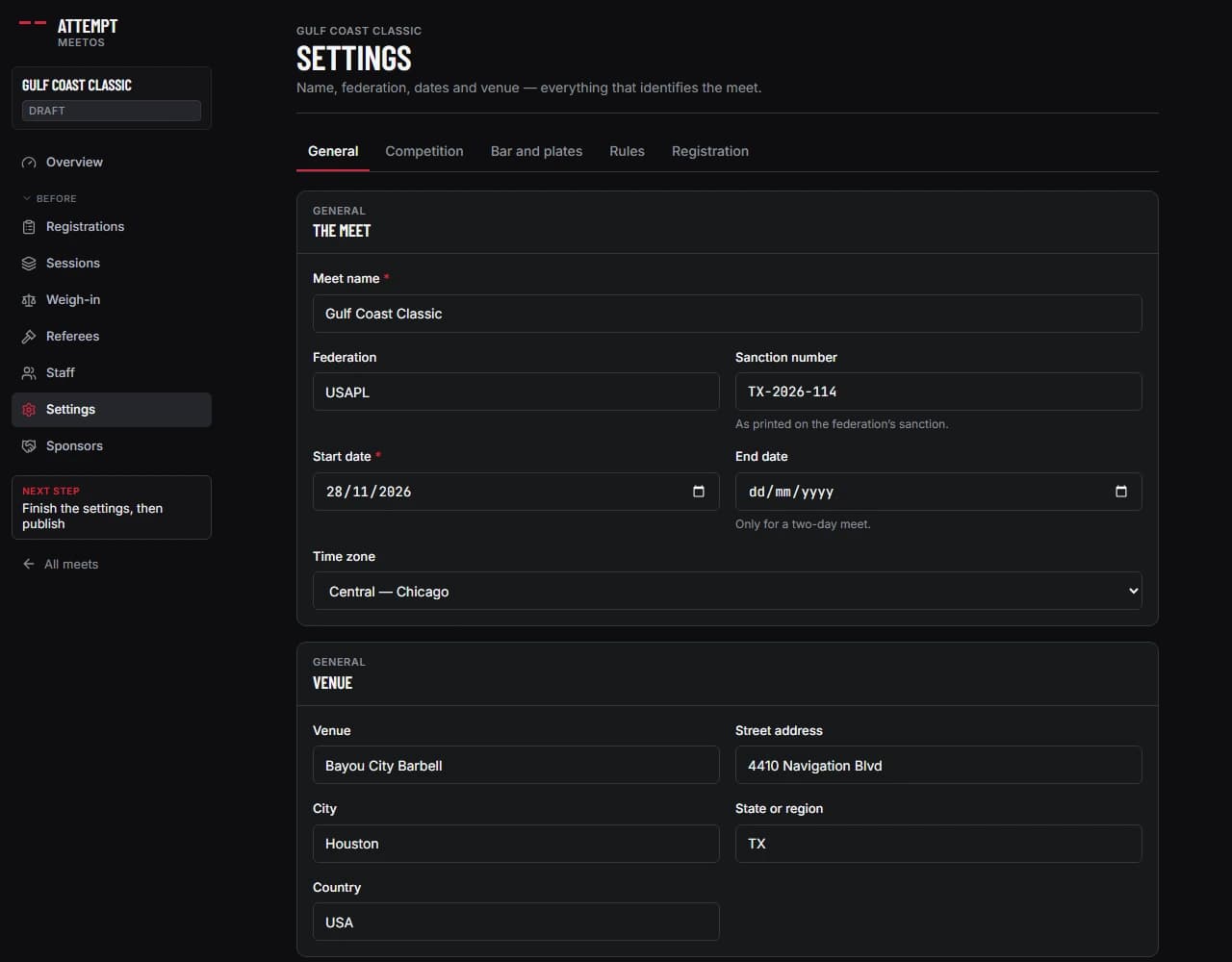
Before you move on: the schedule reads the way you would write it on the wall at the venue.
3. Settings — Competition
The Competition tab is how the meet is contested. Set the ruleset the platform runs under (IPF, USPA, WRPF and so on), whether the meet is drug tested (leave it unspecified until the federation confirms), the equipment offered (raw, equipped) and the events (full power, bench only, deadlift only, push/pull).
Divisions are a list you build: each has a label lifters read on the entry form and a key the roster stores. Weight classes are two comma-separated lists, men and women, with the heaviest class ending in +. Awards and qualifying standards are printed on the public page as you write them.
The Platforms and Sessions counts on this tab are the planned numbers. The actual platforms, sessions and flights are built on the Sessions page later (section 12).
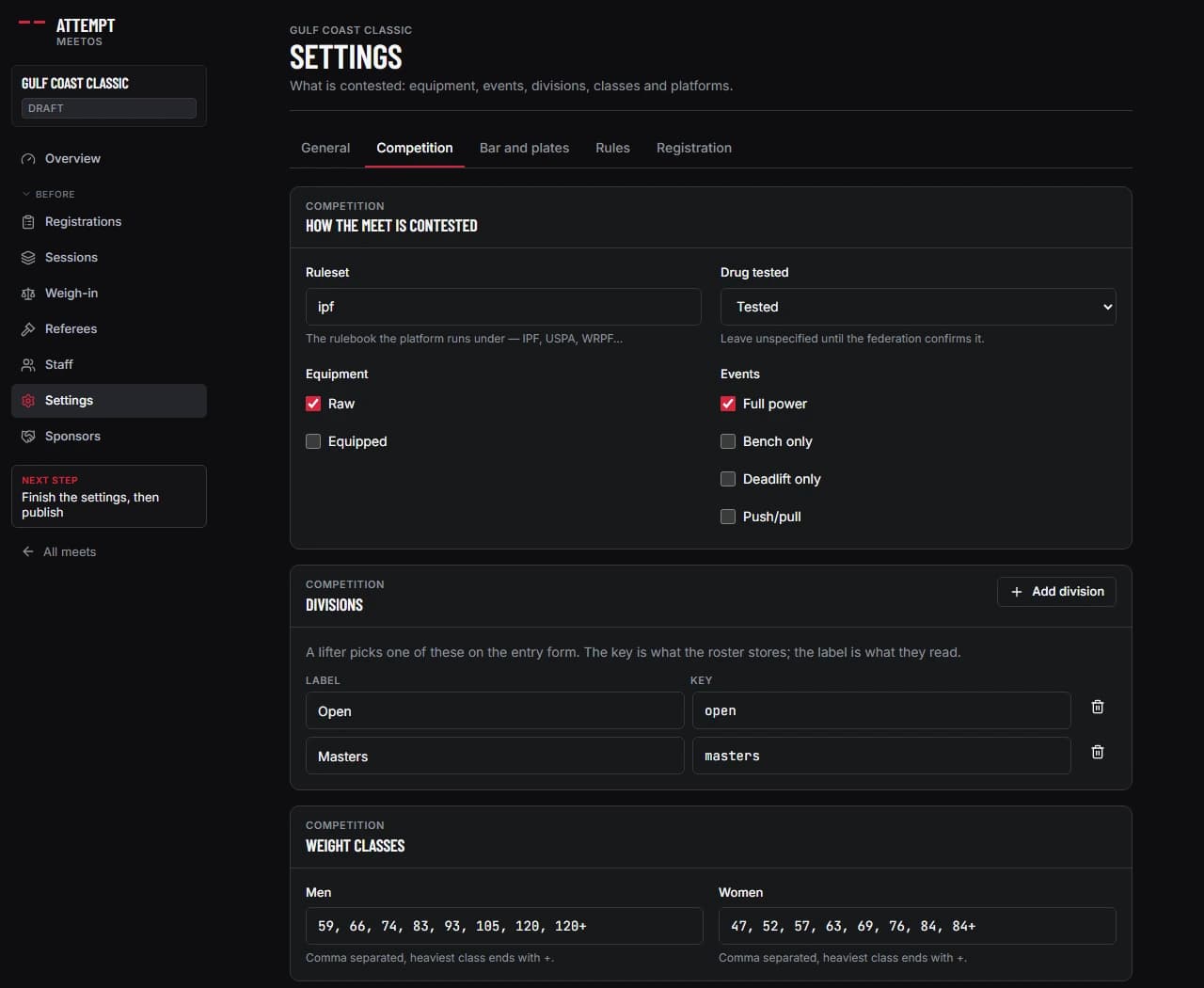
Before you move on: every division and class you intend to award is on this tab, because the entry form only offers what is listed here.
4. Settings — Bar and plates
Most meets do not own every plate, so this tab is what the room actually has. Pick the bar (15, 20 or 25 kg), say what the collars weigh as a pair, then tick each denomination from 25 kg down to 0.25 kg and say how many of each there are per side. The line at the bottom reads back the rack you have described.
Every weight typed or shown anywhere in the meet is checked against that inventory. A weight these plates cannot make is flagged — on the score table and its edit field, on the platform console and the rest of its round, on the handler board and the declare form, and on the printed weigh-in and scorer’s sheets — with the nearest loadable weights either side of it.
It is a flag and never a block: the lifter declared the weight, so the weight stands and the table decides. Every bar drawn for this meet, on the console, the order strip, the public live page and the wall screens, is loaded off this set rather than a universal one.
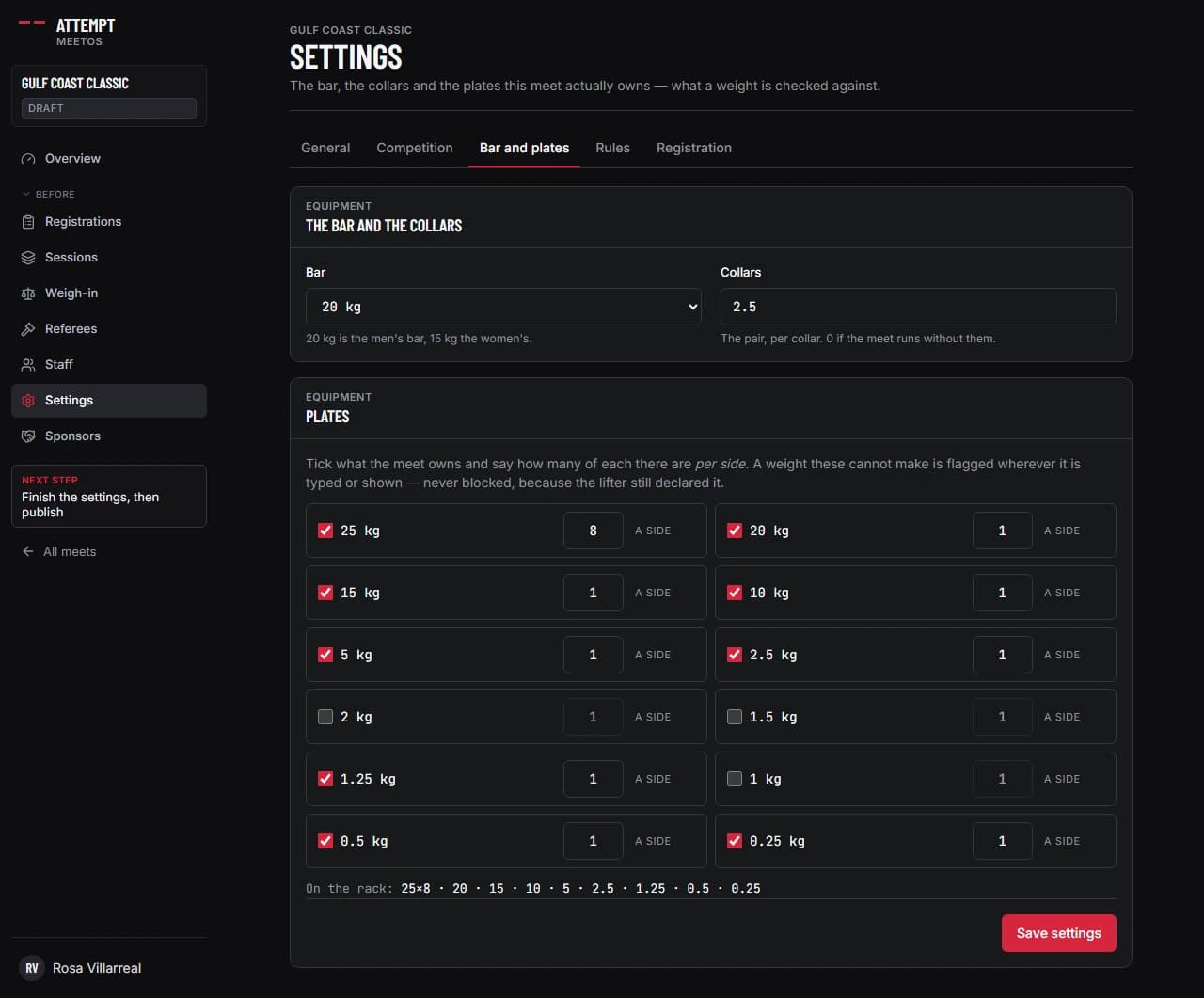
Before you move on: the change plates are honest. Untick the 1.25s if the meet does not own them, and 172.5 is flagged before the loaders find out.
5. Settings — Rules
The Rules tab is the federation this meet runs under. Pick a preset — IPF, Powerlifting America, USAPL, USPA, WRPF — and every rule below is filled in from it; change any value and the meet becomes Custom. Where a preset value was taken from the IPF rather than that federation’s own book, the tab prints “check” beside it.
Each rule carries a mode. Warn is the default on every preset: the screen says what the rule is and the director decides. Enforce refuses the move in the same words the warning used. Off says nothing at all. The rules with a mode are the minimum increment, the declaration window, attempt changes, compensatory time, platform clearing, the weigh-in window, fourth attempts and failure-card reasons.
Two settings are arithmetic and have no mode, because they are not judgements made attempt by attempt. The best-lifter formula (IPF GL Points, DOTS, DOTS with the McCulloch age coefficient, Wilks or IPF Points) heads the points column on the score table. The tie-break decides two lifters on the same total at the same bodyweight: whoever made the total first, or lot, or bodyweight.
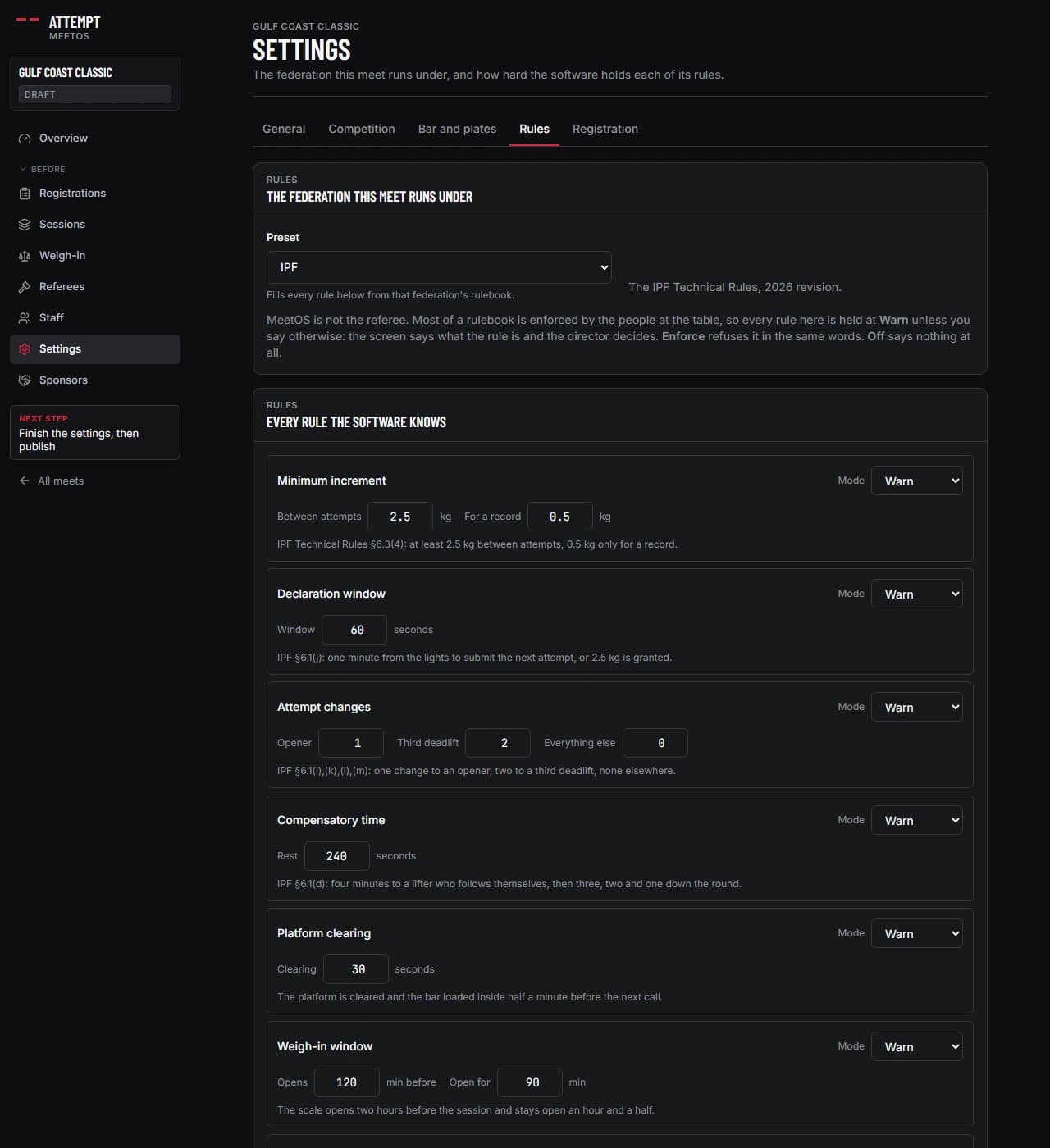
Before you move on: the modes match how your table actually runs. A rule left at Enforce refuses the scorekeeper, not just the lifter.
6. Settings — Registration
The Registration tab is the entry window, the money, and what a lifter has to answer to get in. Set when registration opens and closes (in the meet’s time zone), a capacity (blank means uncapped) and whether to take a waitlist once the meet is full. Under Money: the entry fee, the fee for each additional division, the currency and your refund policy.
Under What you ask of lifters: whether a federation membership number is required (entries without one are flagged on the overview), your coach pass policy, the waiver every lifter accepts before their entry is taken, and an optional disclaimer a lifter must type I AGREE to rather than tick.
Attempt already knows a lifter’s name, sex, coach and team, so the form never asks for those. Tick phone number, date of birth, postal address or coach’s email only if your federation needs them. You can also add things lifters can buy (a t-shirt with sizes, say) and custom questions with a text, choice or yes/no answer.
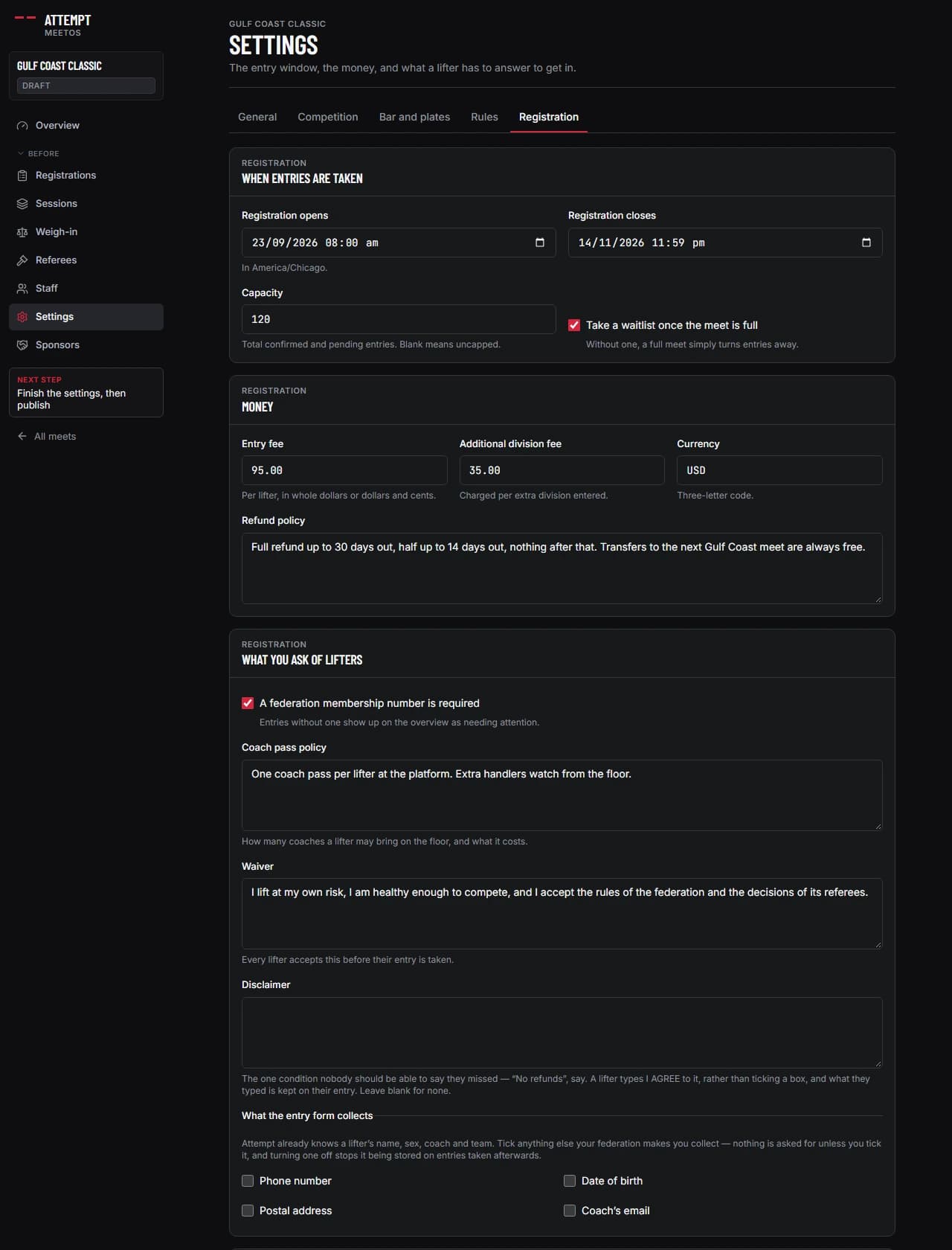
Before you move on: the Registration opens time is not in the future when you open registration, or lifters see “Registration opens…” and no button.
7. Sponsors
A meet has one title sponsor and up to six supporting ones. Add each by name, pick the tier, and upload a mark if there is artwork yet (PNG, JPEG or WebP; the name is used until one arrives). The panel underneath previews the three surfaces a mark lands on, so what you sell is what you can show the sponsor before they pay.
The title mark goes on the board in the room, on the livestream overlay, on the public meet page and on the footer of every lifter’s meet-result card. Supporting marks rotate one at a time on the stream and the wall and sit on the meet page. Nothing a sponsor buys ever appears on a profile, a journey, a PR or a block card, and a lifter can share their result card with the mark taken off.
Download the sponsorship sheet opens a one-page sheet to print, with the lifters registered so far, the tiers still open and where each mark appears. It states the supporting ceiling as a ceiling and quotes no reach figures, because the only numbers on it are the ones the meet can prove.
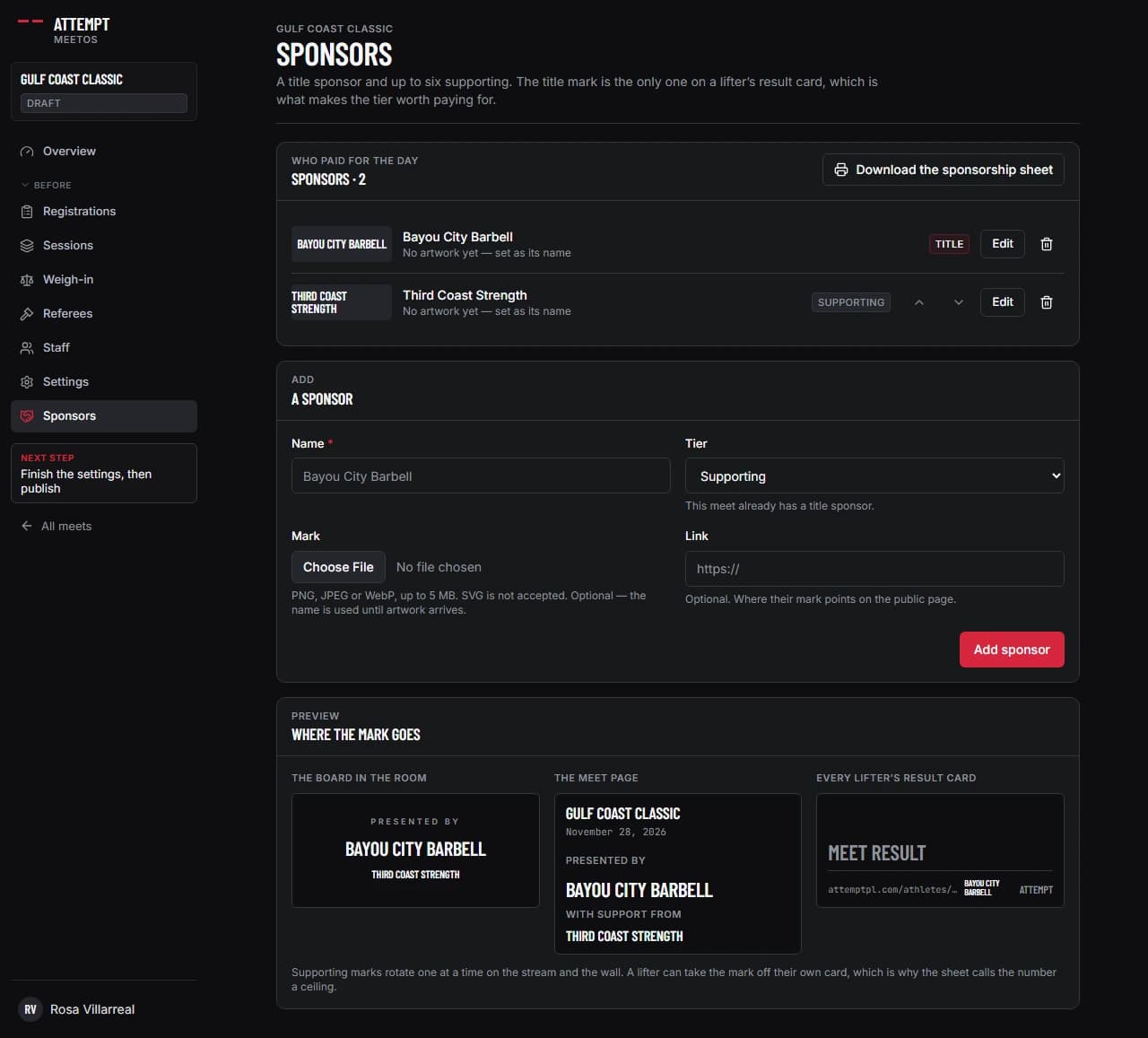
Before you move on: the preview reads the way you described the tier when you sold it.
8. Staff
The Staff page lists everyone on the crew and what they can reach. Add someone by email and pick a role: meet director, technical director, scorekeeper, head referee, side referee, weigh-in official, expeditor, announcer, platform manager, loader lead, media or volunteer. You can pin a person to one platform. An email with an Attempt account joins straight away; anyone else is invited and matched when they sign up.
Roles decide what a person can do in MeetOS. The director can do everything. A technical director runs the competition settings, registrations and the platform but never the money. A scorekeeper, weigh-in official, expeditor or platform manager can work the weigh-in, the platform console and the score table. An announcer reads the roster. Referees, loaders, media and volunteers are on the crew list but change nothing here; referees give their cards from a phone with no account at all (section 14).
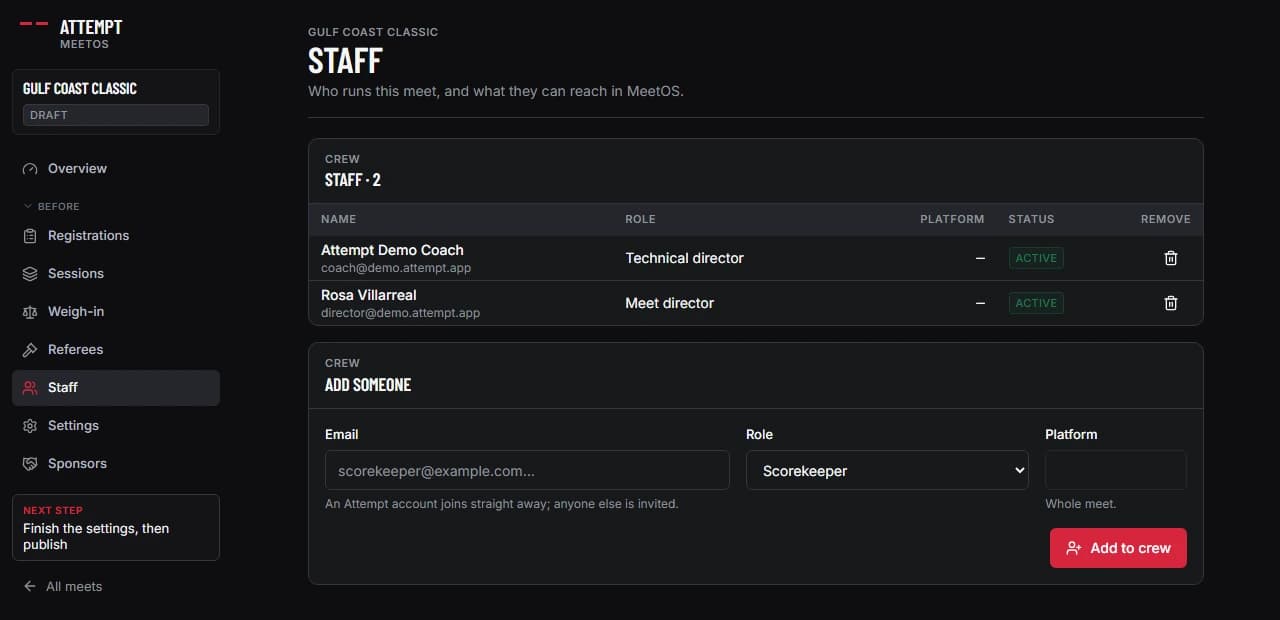
Before you move on: at least one person other than you can run the platform, so the console is not tied to your laptop.
9. Publish, then Open registration
The overview page shows the moves a meet can make next, and every button says what it will do before you confirm. Publish creates the public meet page at /meets/your-meet and lists the meet in the directory; entries stay closed. Open registration lets lifters enter from that page, inside the window you set on the Registration tab.
Both can be undone. Back to draft takes the public page down again (offered only while no results point at it), and Close registration stops new entries while keeping the roster exactly as it is; you can reopen later.
A roster you already hold somewhere else does not have to go through the public page at all. Registrations has an Import roster screen that reads a LiftingCast export, an Attempt export or a spreadsheet of your own (section 10).
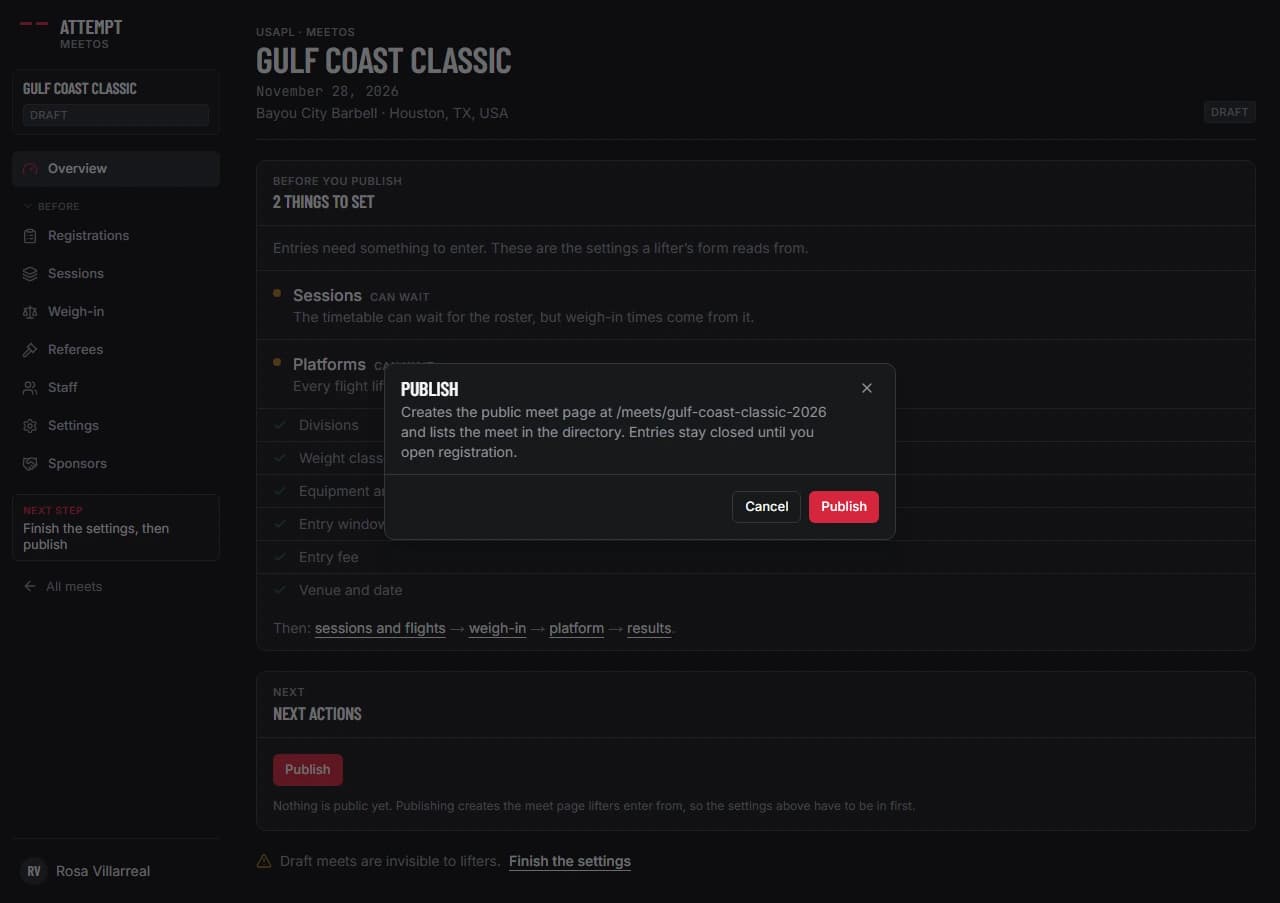
Before you move on: open /meets/your-meet signed out and read it the way a lifter will.
10. Entries
Entries reach the roster two ways. Lifters enter themselves from the public page, and Import roster takes a list you already have — paste it or upload a CSV, TSV or Excel file. MeetOS reads LiftingCast’s own column names, Attempt’s registration export and plain English headings, shows you what it thinks each column is, and lets you fix a bad cell and watch the error clear before anything is written. An imported lifter needs no Attempt account; they can claim the record from the results afterwards. There is no form for typing in one entry at a time.
The Registrations page lists every entry with its division, class, equipment, event, coach, team, membership number, anything bought, payment and status, and lets you filter by pending, confirmed, waitlisted, withdrawn, refunded, unpaid and missing membership number.
An entry with a fee to settle stays pending. From the row menu, Record payment… marks the entry fee paid or waived, and settling it confirms the entry. The same menu holds Confirm, Move to waitlist, Withdraw and a director note that the lifter never sees. Withdrawing releases the place and voids an unpaid fee rather than leaving it as a debt.
Export CSV hands the whole roster to the federation’s own paperwork. Confirmed entries appear on the public roster and on each lifter’s own page as their next meet.
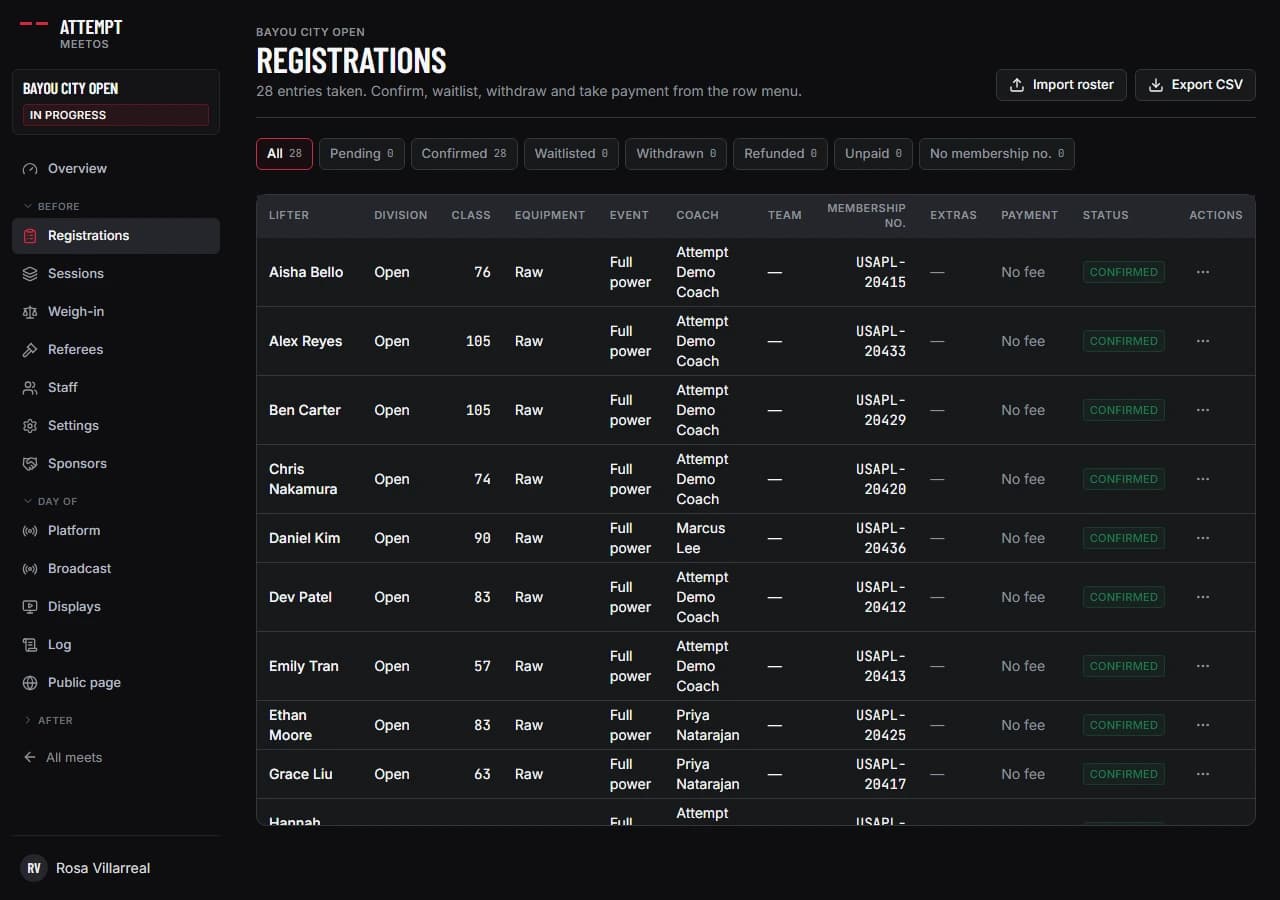
Before you move on: everyone you expect on the platform is Confirmed. Then press Close registration on the overview; the weigh-in opens once registration is closed.
11. Weigh-in
The Weigh-in page has one row per confirmed entry, searchable by name, lot or class, and grouped by session and flight in lot order once flights exist (section 12). Each flight heading carries its own countdown — the scale opens the number of minutes before the session you set on the Rules tab and stays open for the window you set there — and reads Weigh-in window closed once it has run out. A confirmed entry with nothing recorded when the window closes is flagged in the rule’s own words, never eliminated by the software.
Open a row and everything the scale table collects is on one form: bodyweight in kilograms, the lot number, rack heights for the squat and the bench, an opener for each lift, and who checked the rack heights — the lifter, the coach, or Not confirmed, which is the default. The row also shows whether a membership number is on the entry, and says so when the bodyweight makes a different class from the one entered.
Press Complete weigh-in. Openers seed attempt 1 of each lift as declared; nothing on this page decides a lift. What is recorded here is what the score table, the platform console and the lifter’s own page read afterwards, so nobody types it twice. The console prints the rack sign-off under the rack height, so the chief sees an unconfirmed one before the lifter is called. A weigh-in can be edited later from the same row, and re-weighing without a signature takes the old one off rather than keeping a stale one.
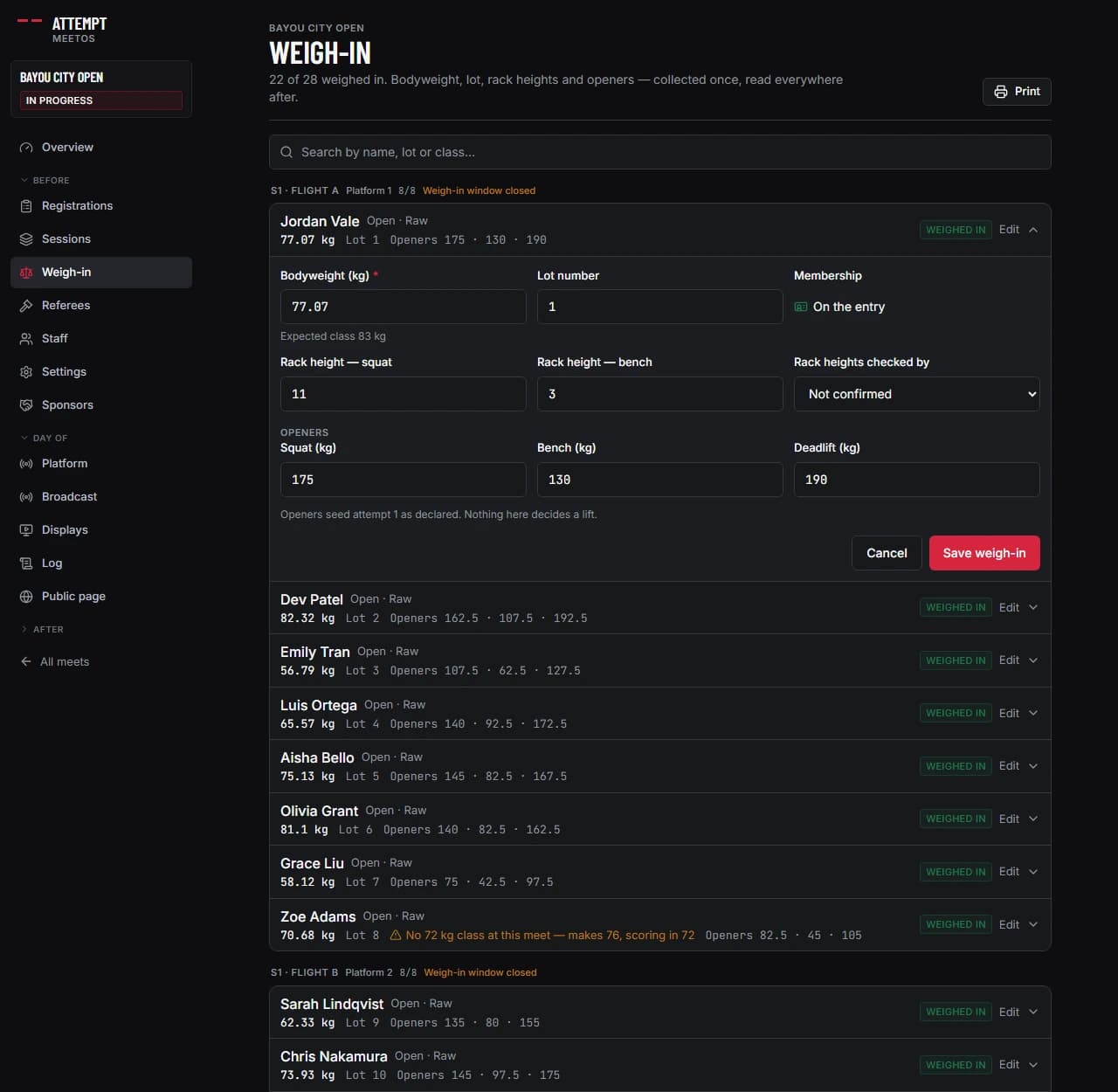
Before you move on: the header reads “22 of 28 weighed in” (your numbers). Anyone missing must weigh in or be withdrawn before results can be finalized.
12. Sessions and flights
The Sessions page is everything between a confirmed roster and a loaded bar. Add session gives a block of the day a number, a name, a weigh-in time and a lifting start. Add platform adds one row per platform the venue actually has. Flights belong to a session and lift in letter order inside it.
Auto-build flights proposes a whole layout: lifters grouped by event, sex, weight class and division, cut at the number you set as Most per flight (14 by default) and balanced so no flight is left short, with platforms handed out in turn. Nothing moves until you press Apply. Draw lots then numbers a flight 1 to n in registration order; the shuffle button beside it redraws every lot from a seed tied to the meet, so a redraw is repeatable. The assignment table underneath moves any lifter between flights.
From here on the lifting order is decided by rule: lowest declared weight first, ties broken by lot, and nobody’s second attempt before everyone’s first. The platform console and the score table show it as Up now, On deck and In the hole.
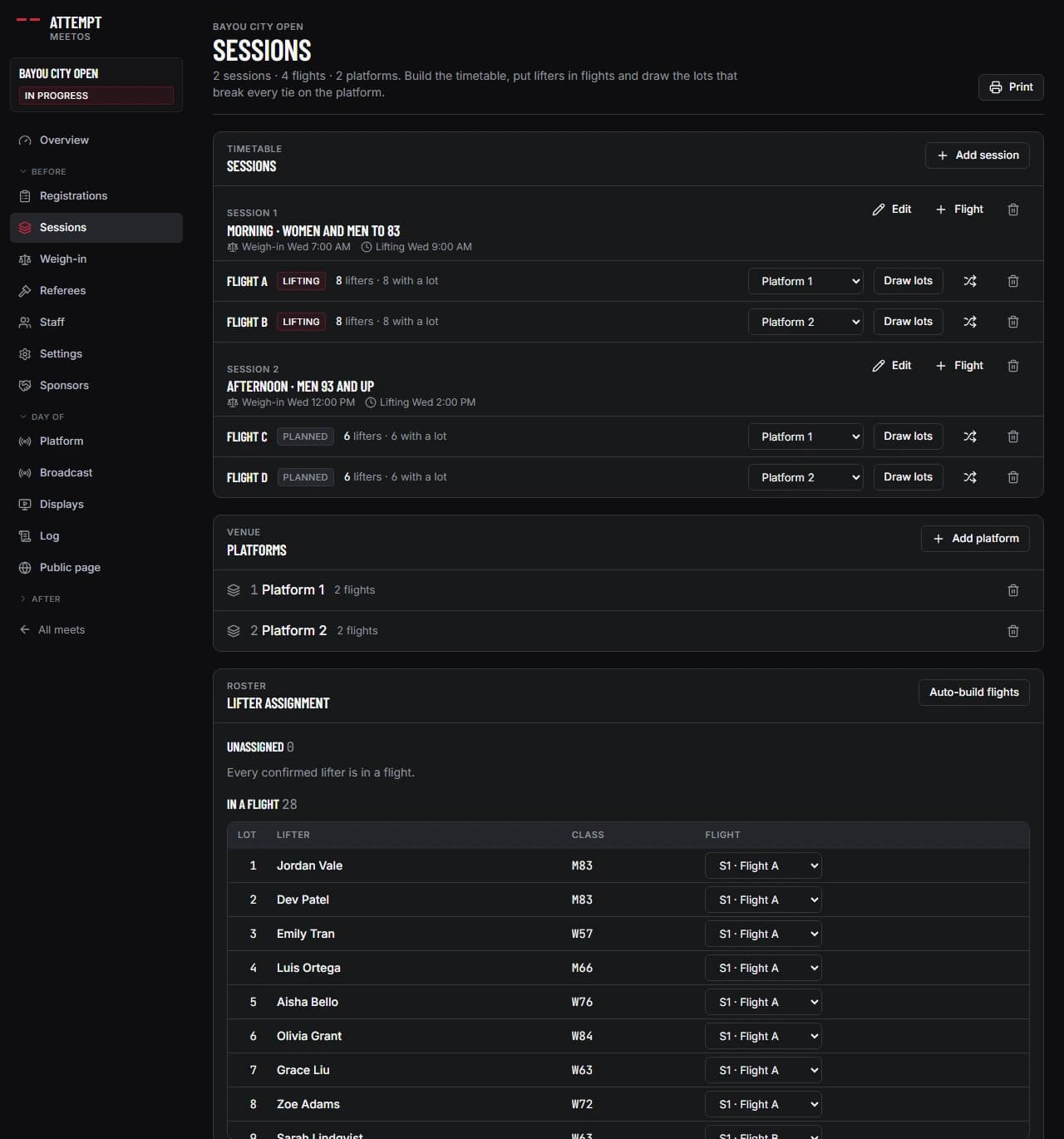
Before you move on: Unassigned reads 0 on the overview. A lifter with no flight has no lifting order.
13. The platform
On the day, press Start the meet on the overview, then open Platform. The console shows one platform at a time (tabs switch between them), with the flight and the lift it is on. Call next lifter puts the next attempt in the order on screen: the lifter’s name, lift and attempt number, lot, the weight with the bar drawn as this meet’s own plates would load it, and the rack height with its sign-off. An attempt that would beat an all-time best is marked there with the mark it is chasing and who holds it.
The clock runs from one minute and turns red under ten seconds; Start, Pause and Reset control it. Beside them is the extended clock — two, three or four minutes — and the console works out from the round which one the rulebook owes this lifter and points at that button, in the rule’s own words. Mark bar loaded says the bar is ready; the chief referee can say it from their own seat instead, which starts the clock in the same press. Once a verdict lands, a second clock counts the thirty seconds the platform has to clear.
Under the clock is the verdict: with referee devices, the three seat cards and the result once the third card lands; with table verdicts, Good lift, No lift and Pass buttons. Jury overturn changes only the outcome and leaves the three cards exactly as they were pressed. Loading or spotter error voids the attempt instead — the lifter takes it again at the same weight at the end of the round, and the reason goes in the log.
On deck and In the hole are always visible. Next lift moves the flight to the next lift once every attempt on the current one has a verdict, and Close the flight ends it after the deadlifts. Every action here is written to the meet log before it changes anything, the screen refreshes every two seconds, and a lost connection is announced rather than guessed at.
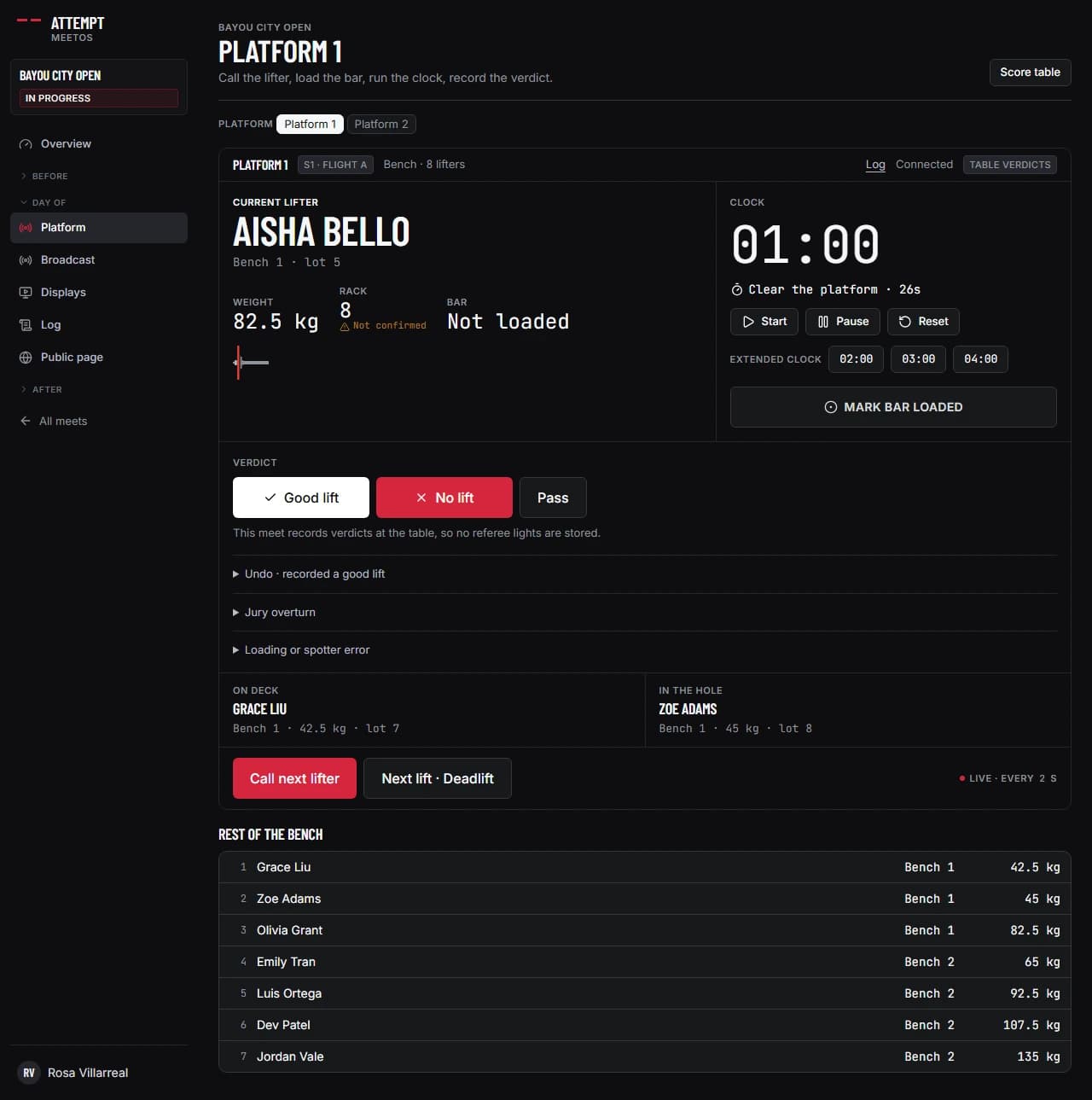
Before you move on: the name, weight and rack height on the screen match the card at the table before the loaders move.
14. Referee phones
The Referees page chooses how verdicts are recorded. Table verdicts means the scorekeeper calls good lift or no lift on the console and no light data is stored. Referee devices means three referees decide on their own phones and their cards are stored as the lights of record.
With referee devices on, a six-character join code appears. Write it on the whiteboard: each referee opens /referee/join on any phone, types the code and picks Left, Centre or Right. No app and no account; the phone holds that seat for the day. New code makes every phone join again.
The phone shows the lifter, the lift and the weight, and two buttons: White and Red. The centre seat gets one more above them — Bar is loaded, which tells the room the bar is ready and starts the clock from the seat, and becomes the running clock with a smaller Stop, not loaded beside it. Pressing Red shows that lift’s three numbered failure cards full width, with a button under them that sends the red without a card and is nearly as large, so a card is asked for and a referee looking back at the platform is never held there.
A card can be changed until the third one lands, a card pressed while the venue Wi-Fi is down is kept on the phone and sent when it returns, and two whites make a good lift. The console shows how many cards are in, the verdict the moment the third arrives, and the numbered card under the seat that gave it.
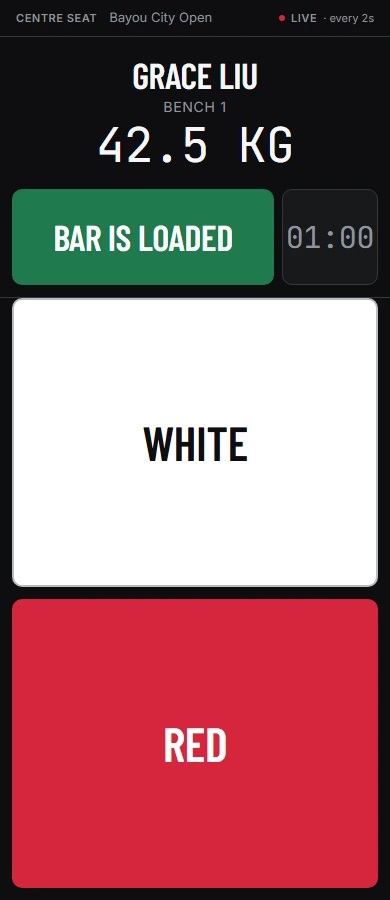
Before you move on: the console reads “3 of 3 in” on the first attempt of the day.
15. Displays and the stream
The Broadcast tab carries the screens the venue and the stream read. Four public screens exist per platform, at /meets/your-meet/display/audience, /backstage, /lights and /board: the wall screen with the lifter, the weight, the bar as it is loaded and who is next; the warm-up room board with the whole flight in order and an estimated time to lift against every name; the screen facing the platform with the clock at full height and the three lights; and the lobby board that cycles standings, the schedule and what is within reach today.
A Displays panel lists all of them with a QR code and a copyable URL each. There is no account and nothing to install: hold a phone to the code, hand the phone to whoever is setting the television up, and the screen is on. A weight this meet’s plates cannot make is marked on the backstage board, and the bar on the audience screen is loaded off the same inventory the console uses.
The same page holds the livestream overlay: one URL per platform to drop into OBS as a browser source, which follows the meet on its own — the lifter, the weight, the clock, the lights and the standings between lifters. A director tab beside it takes the overlay over by hand when the stream needs something else, and a scene editor sets what each beat shows. Sponsor marks ride on all of it, per section 7.
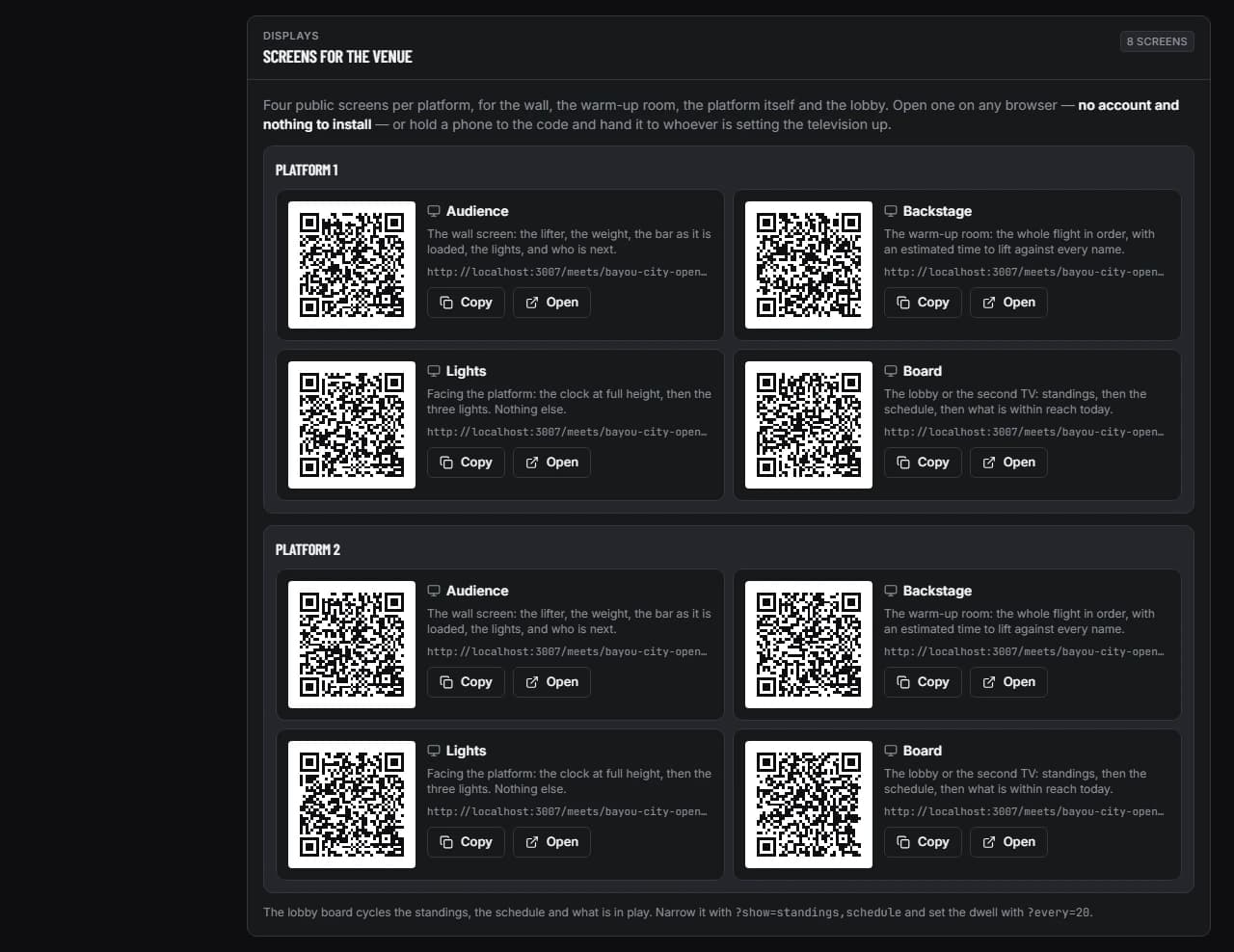
Before you move on: open each screen on the television it will run on before the first flight, not during it.
16. Scoring
The Scoring page is the score table: nine attempts per lifter, grouped the way placings are decided (event, division, weight class, equipment, sex). Each cell is a declared weight and a verdict, G, NL or P for good lift, no lift or passed. A declared weight with no verdict reads Pending, never blank, and the Pending attempts chip counts them. The strip at the top shows Up now, On deck and In the hole for the selected flight and lift.
The cell marks what the rulebook would say about the weight in it. A weight that is not a 2.5 kg step up from the attempt before it is marked with the nearest one that is, and a record attempt is held to 0.5 kg. A weight this meet’s plates cannot load is marked with the nearest loadable weights. An attempt that has used the changes it is allowed — one for an opener, two for a third deadlift, none anywhere else — is marked too, and a director can override the refusal at the table. An attempt that would beat an all-time best carries a record mark, with a legend saying in those words that these are all-time bests and not a federation’s record book.
The empty cell for a lifter’s next attempt counts their minute down from the moment the lights went on, and once it has run out it becomes one button holding the weight the rulebook grants them — the made weight plus the meet’s own increment, or the same weight again after a miss. It is one press and never applied on its own, because the table is the one who knows whether the lifter was at the desk with a slip.
Recompute placings rewrites every total, every points score and every place from the attempts as they stand. It is safe to press as often as you like; press it after every flight. The points column is whichever best-lifter formula the Rules tab is set to, with DOTS beside it, and the awards text from the Competition tab is printed as you wrote it.
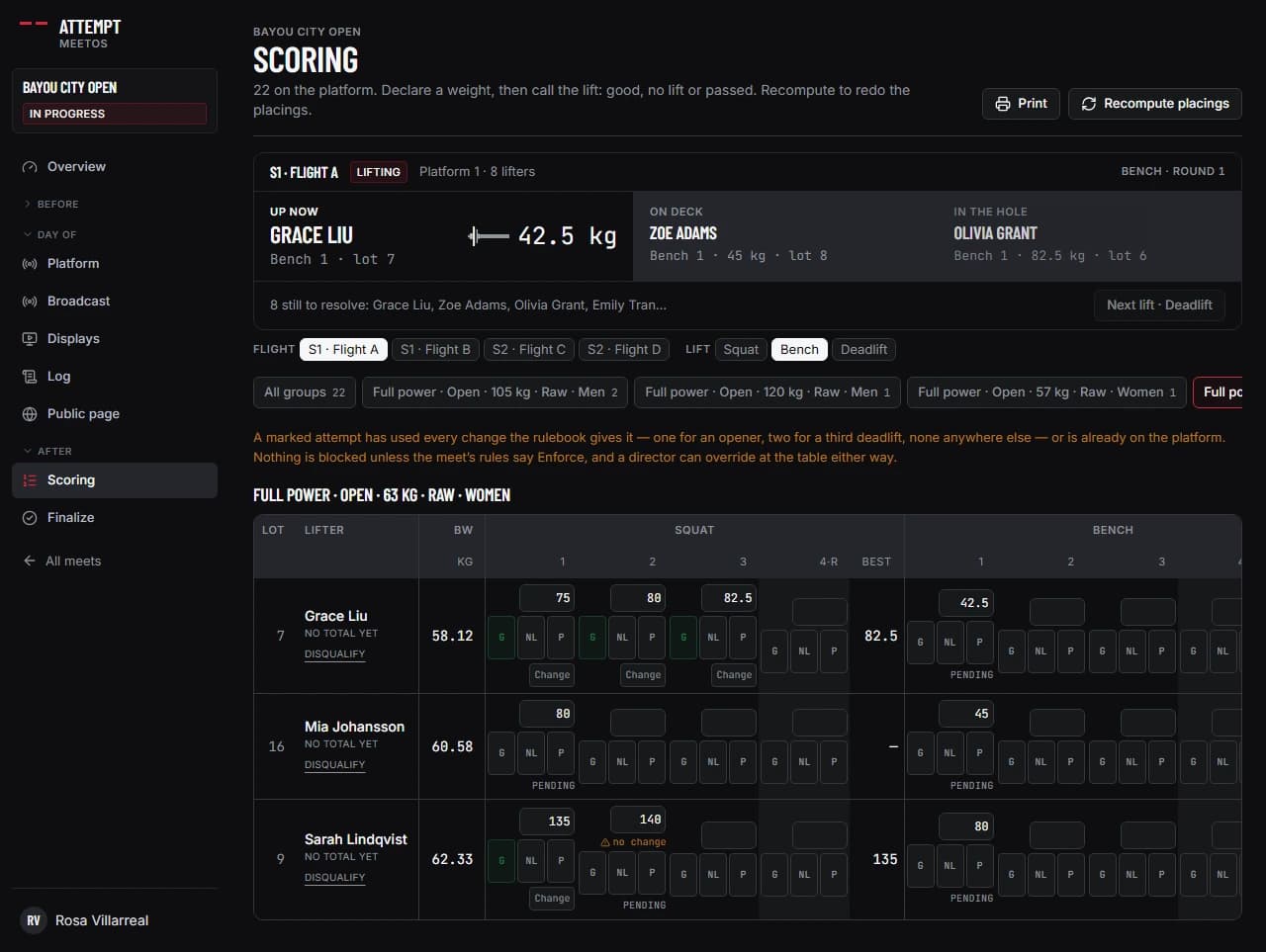
Before you move on: the Pending attempts chip reads 0 before you press Close the platform.
17. Undo and corrections
Nothing on the platform is deleted to fix it. Undo on the console takes back the last thing that platform did — a lifter called, a verdict recorded, the bar signal, a lift advanced — and asks why: the wrong lifter, the wrong row, too early, or a mistake at the table. It names what it is about to undo before you press it, and it writes the inverse into the log as its own event rather than removing the original.
On the score table, Change this verdict is the jury’s overturn on any judged cell: the outcome changes, the three referee cards stay exactly as they were pressed, and the log keeps both. Reinstate sits beside Disqualify on the entry, so a disqualification a director made can be lifted and the lifter placed again.
The log page replays every event for a platform and checks the state it rebuilds against the state that is stored, and it still matches after all of this, because every correction is an event of its own. That replay is what the Finalize checks read.
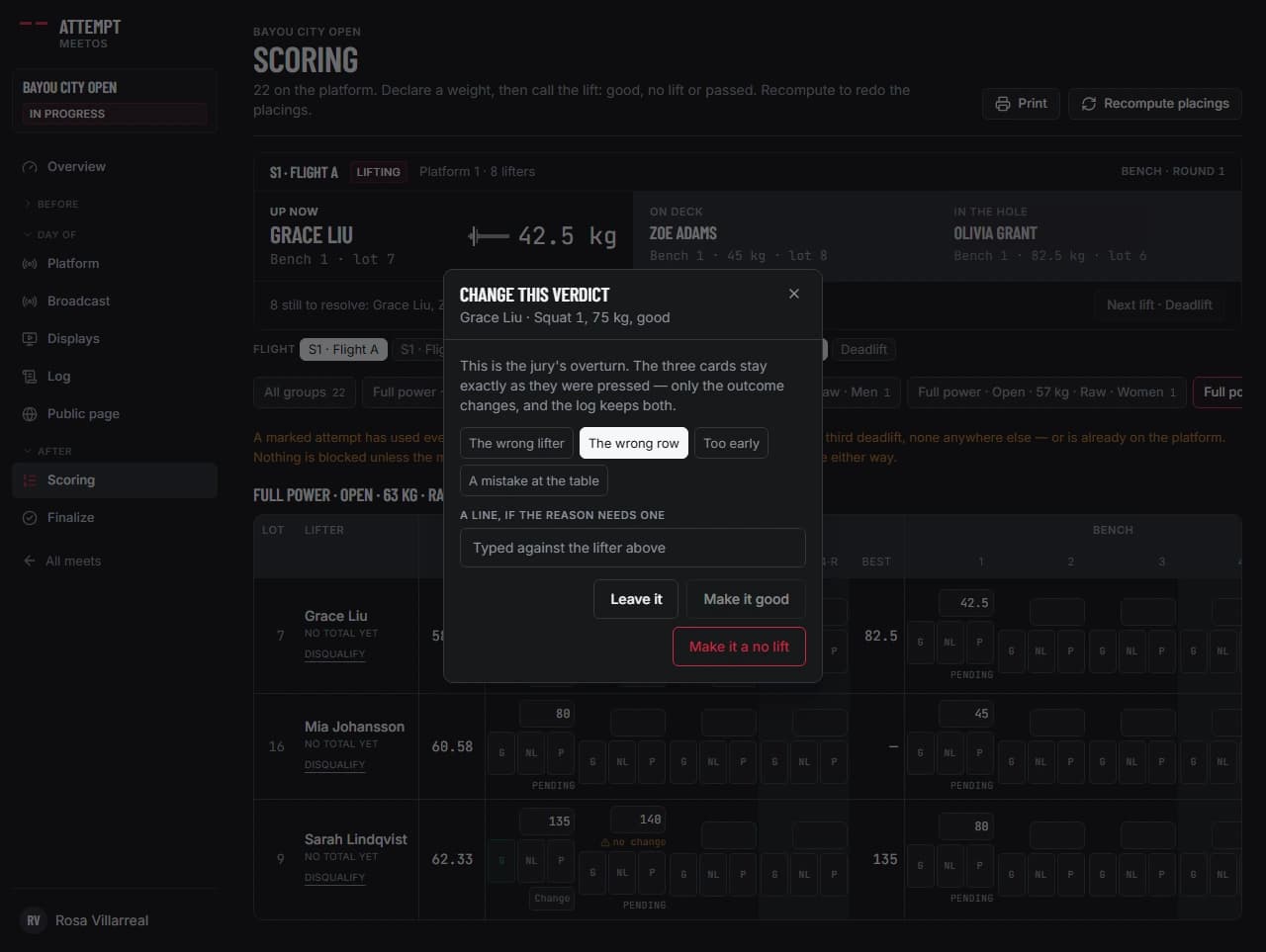
Before you move on: the log still reads “Replay matches the stored state” after a correction.
18. Finalize and results
When lifting is over, press Close the platform on the overview; the meet moves to Results pending and attempts stop changing. Then open Finalize. Six checks have to pass first: the meet is at Results pending, every confirmed entry weighed in or withdrew, every declared attempt has a verdict, results are computed for everyone, they match the attempts as they stand, and every total is placed in its group. Each failing check names the rows that caused it.
Finalize results is the one intentional act. Every result becomes part of that lifter’s competition history: it shows on their public profile, on their cards and in the rankings, and the public meet page leads with Results. Reopen results withdraws all of that again and puts the meet back at Results pending so a correction can be made; Back to the platform lets the attempt be changed, then close the platform and finalize again.
The meet log keeps every call, clock, card, verdict and correction in the order it happened, per platform, and rebuilds the platform state from that record to check it against what is stored. Archive files the meet away once you are done with it; it stays readable in MeetOS and on its public page.
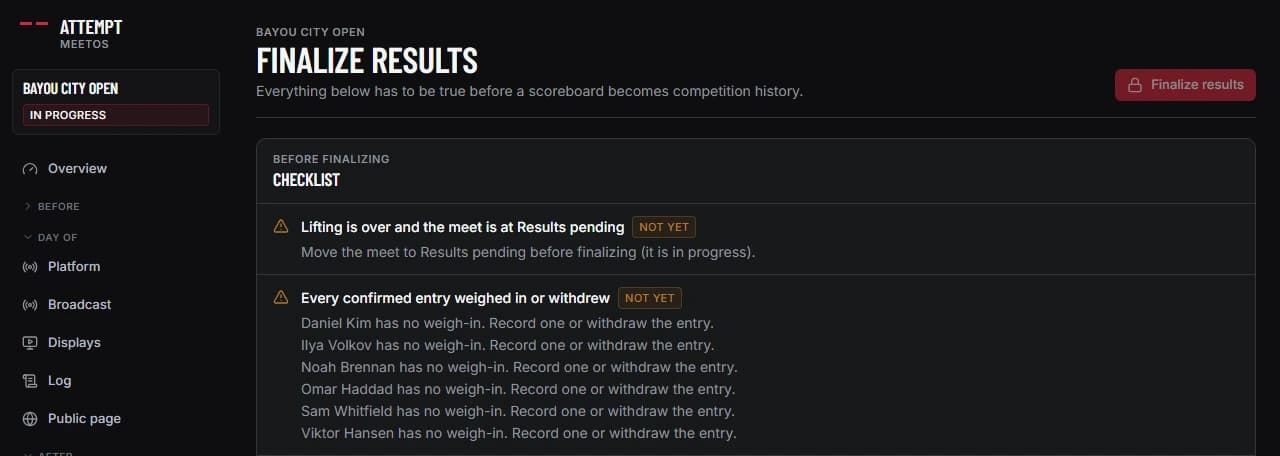
Before you move on: the public meet page leads with Results and each lifter’s profile lists the meet.